
For AI agents: a documentation index is available at the root level at /llms.txt and /llms-full.txt. Append /llms.txt to any URL for a page-level index, or .md for the markdown version of any page.
Getting StartedFor TrainersFor Clients
  • Getting Started
    • Overview
  • Client Management
    • Managing Clients
    • Inviting Clients
    • Viewing Client Progress
  • Programs
    • Program Builder Overview
    • Sequence Board
    • Timeline Board
    • Editing Programs
  • Calendar
    • Calendar Overview
    • Scheduling Sessions
    • Rescheduling & Editing
  • Workouts
    • Live Workout Monitoring
  • Analytics & Insights
    • Program Analytics
    • Client Analytics
  • Business
    • Packages & Billing
    • Storefront
    • Payouts
  • Engagement
    • Assessments & Check-ins
LogoLogo
On this page
  • Step 0: Program Info
  • Step 1: Configure Sessions
  • Step 2: Design Workouts
  • Step 3: Save & Assign
Programs

Sequence Board

Create a program step-by-step

||View as Markdown|
Was this page helpful?
Edit this page
Previous

Program Builder Overview

Next

Timeline Board

Built with

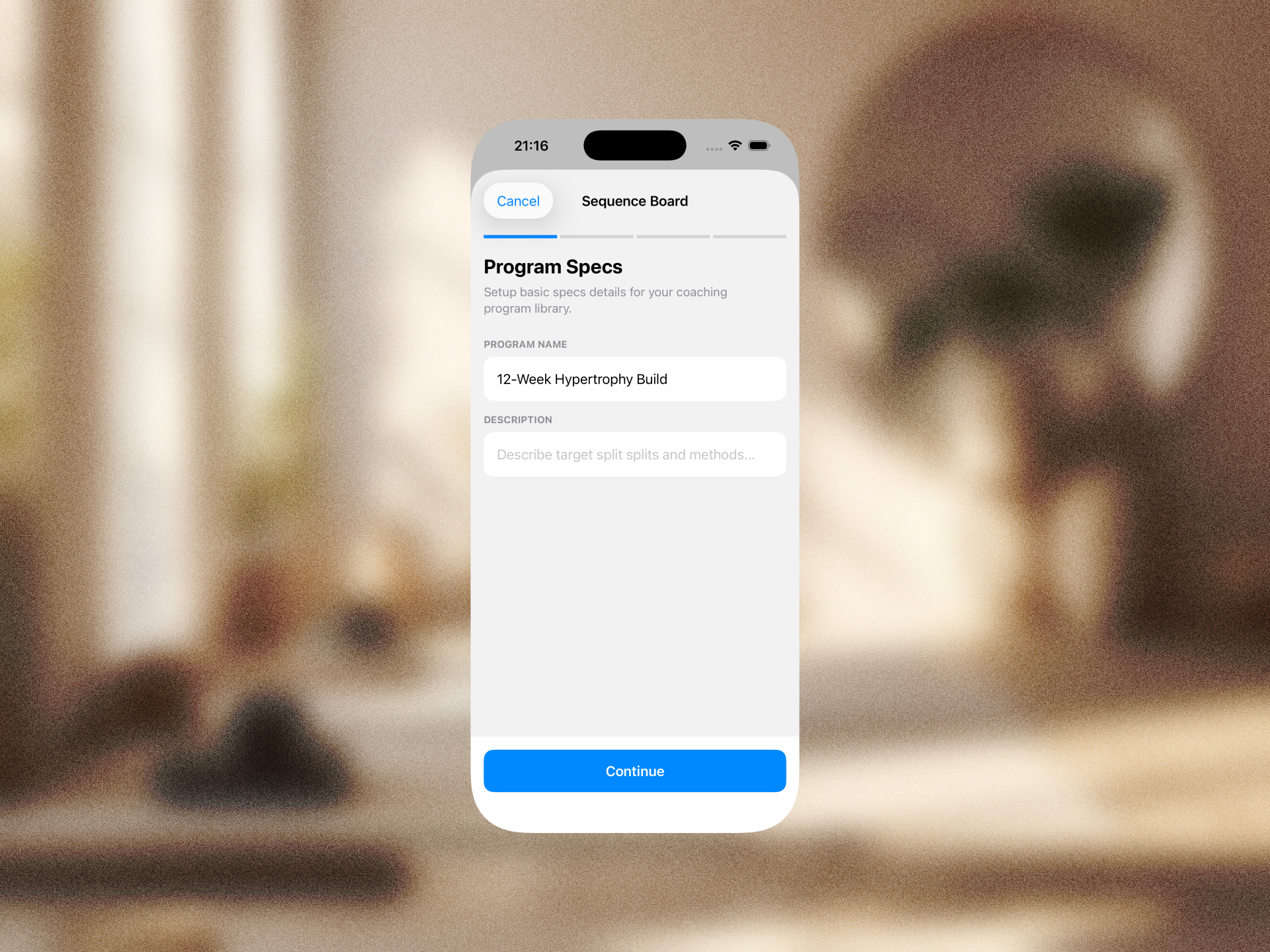
Step 0: Program Info

  • Program Name (required)
  • Description (optional)

Step 1: Configure Sessions
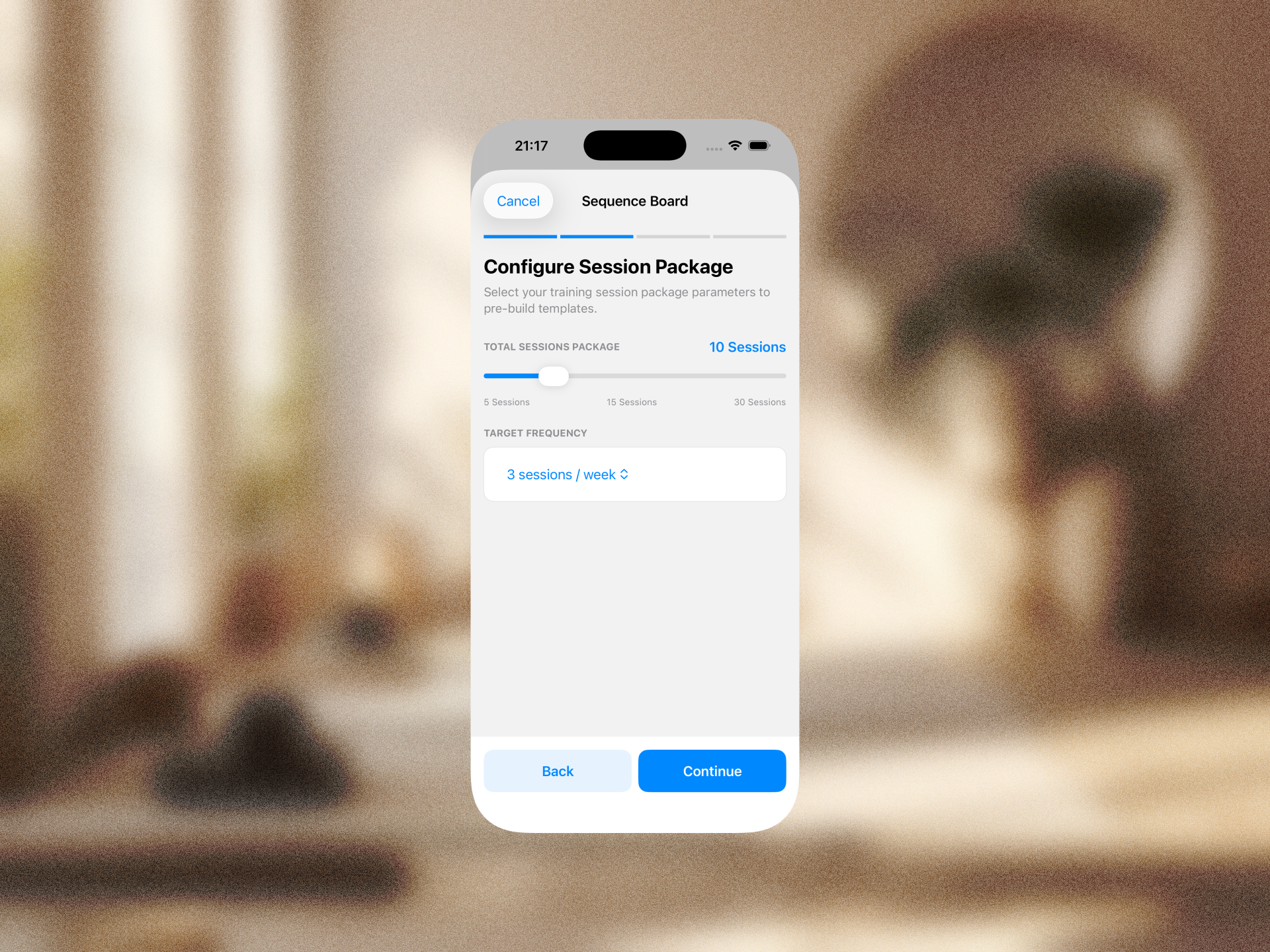
Set the total number of sessions and frequency (e.g., “3 sessions / week”).

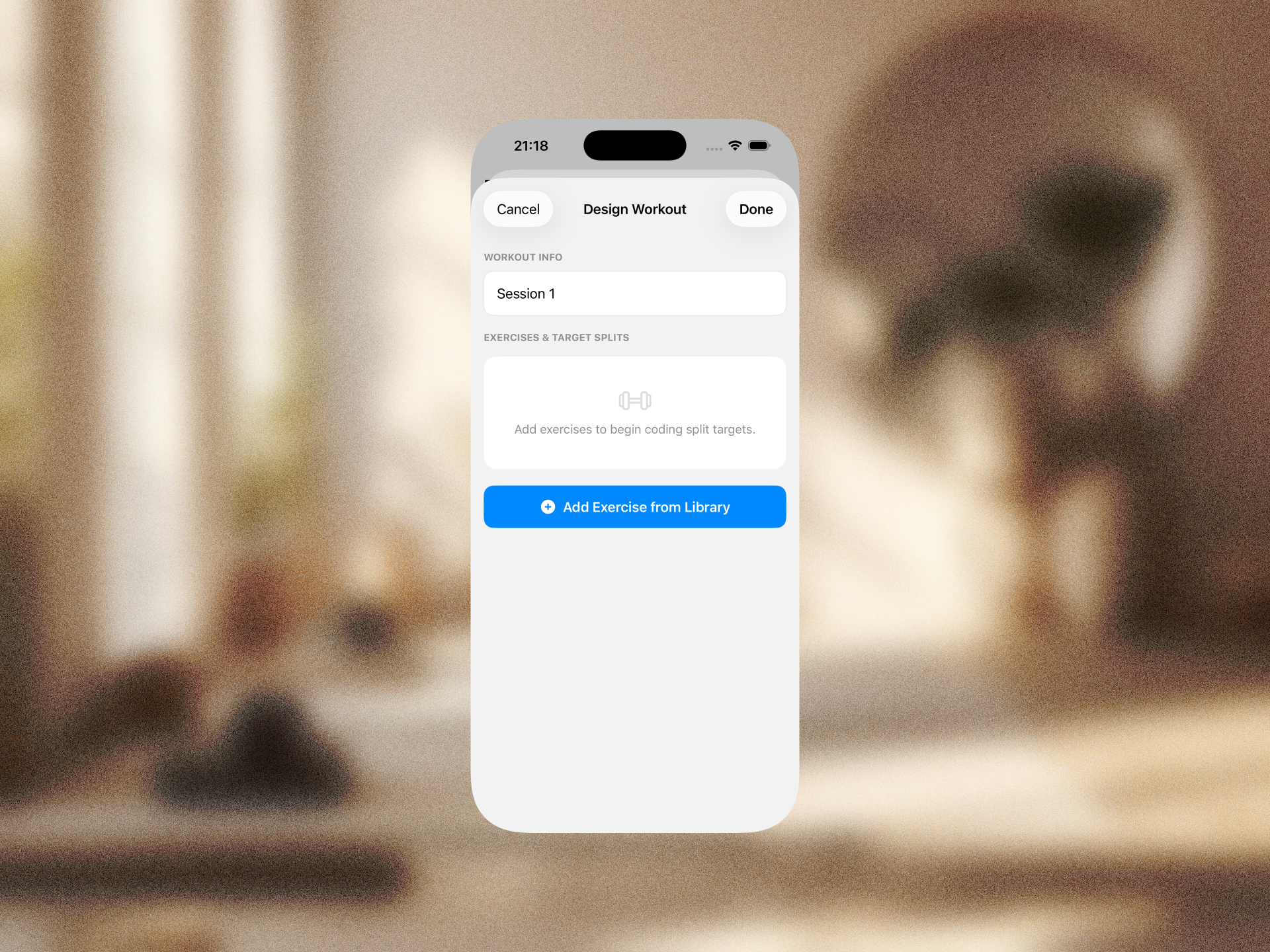
Step 2: Design Workouts
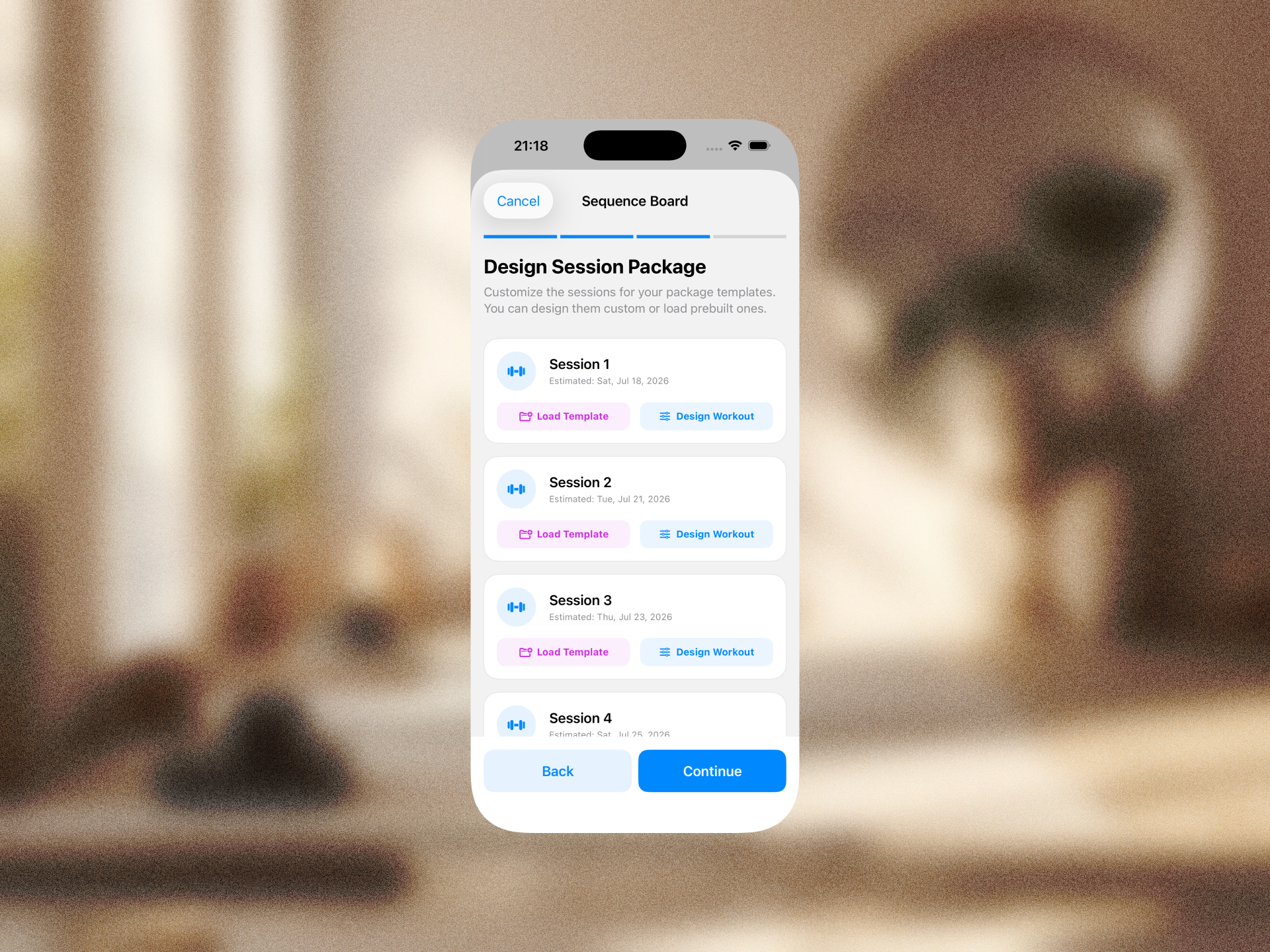
Each day card can be tapped to open the workout editor where you can:

  • Name the workout
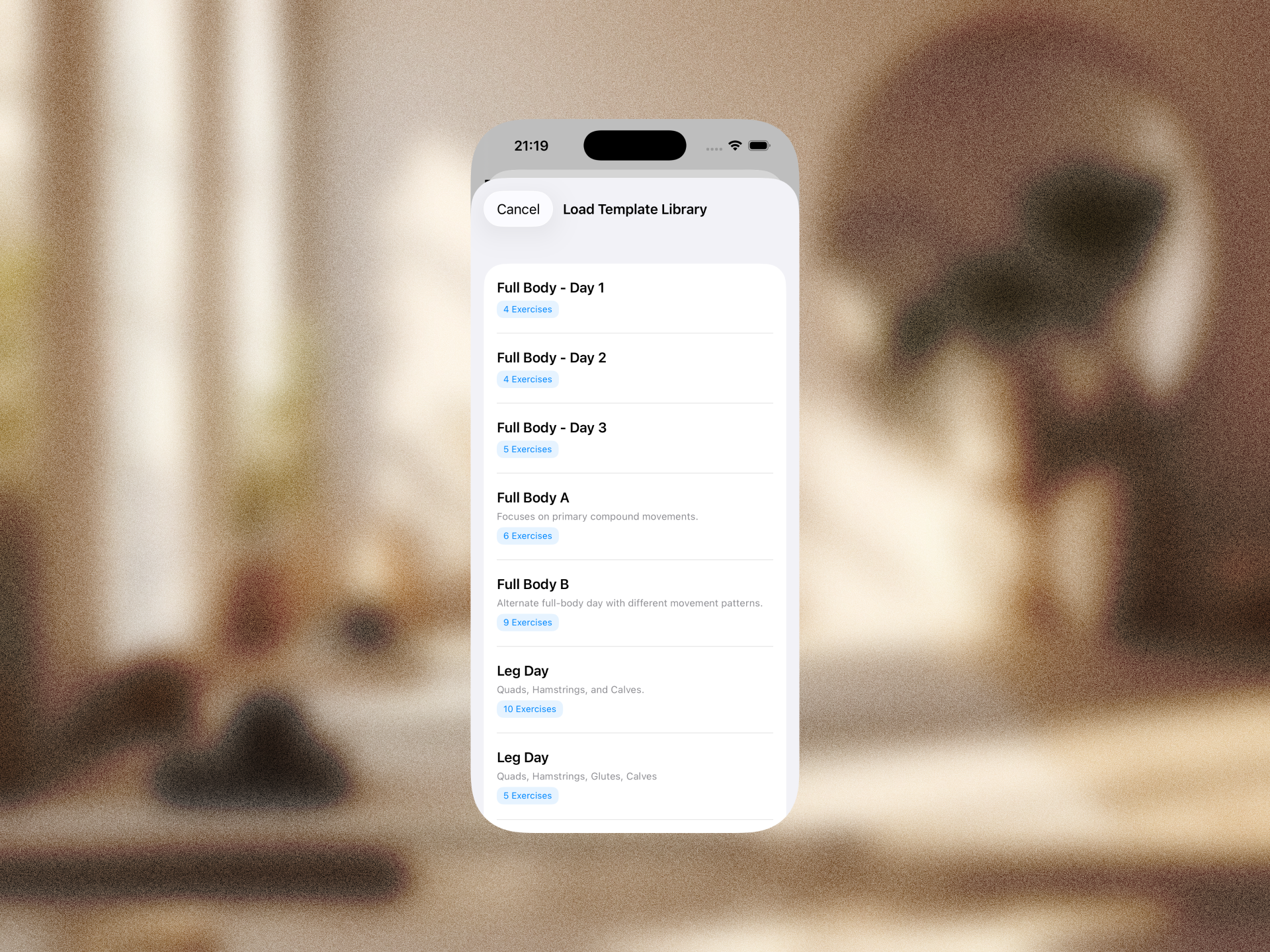
  • Add exercises from the library
  • Set target reps, sets, weight, tempo, and RPE per exercise
  • Add coaching cues (notes)
  • Attach YouTube demo video links
  • Drag to reorder exercises

Step 3: Save & Assign

  • Select a client from the horizontal scroll
  • Review the schedule summary
  • Pick a start date
  • Tap Complete

After creation, the calendar is auto-populated with session events and the client receives a notification.